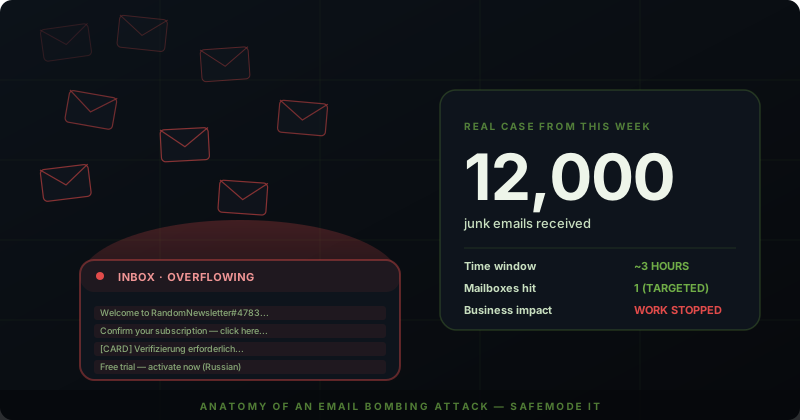
A small business owner called us this week in a panic.
Twelve thousand emails. In just a few hours. All in one mailbox.
Confirmation messages from newsletters he never signed up for. Account verification emails from sites he’d never heard of. Phishing attempts. Junk in five different languages. His inbox was unusable, work had stopped, and he had no idea what to do.
If you’re reading this and your stomach just dropped because something similar happened to you — or you’re realizing it could happen to you — keep reading. This is one of the more common attacks against small businesses right now, and it’s almost never just spam.
What This Attack Actually Is
What this business experienced is called an email bombing attack (sometimes referred to as a subscription bomb, list bomb, or mail bomb). The attacker takes a target email address and submits it to thousands of newsletter sign-up forms, account creation pages, and contact forms across the internet — all at once, often using automated tools and scripts.
Within minutes, the victim’s inbox starts filling with confirmation emails, “welcome to our newsletter” messages, account verification requests, and miscellaneous junk. The volume can hit thousands per hour. Every individual message is technically “legitimate” — meaning it came from a real sender that the bot signed the victim up for — which is exactly what makes traditional spam filters miss it.
Why You Should Be More Worried Than You Think
Here’s the part most people miss, and the part that should genuinely scare you:
The flood of spam is almost always a smokescreen for something worse.
While you’re frantically trying to figure out what’s happening with your email, attackers are usually doing one of these things in the background:
- Stealing money via wire fraud or fake invoices. A pending wire confirmation, a fraudulent invoice approval, or an unauthorized purchase notification gets buried in 12,000 spam messages.
- Hiding active account compromise. They’ve already broken into your account and are using the email flood to mask password reset confirmations, security alerts, or notifications about new logins from foreign locations.
- Burying important business communications. A vendor about to wire you money, a client confirming a contract, an attorney sending a critical notice — all buried in noise so you respond too late to matter.
The single most important thing during an active email bomb is to check for fraud and account compromise first — not just clean up the inbox.
What This Customer Did Right
In our customer’s case, the immediate response checklist looked like this:
- Confirmed MFA was already enabled. A win — without it, the account was probably already taken over.
- Forced a password change from a clean device, ideally not the one being used to manage the inbox.
- Called the email host (in this case, Microsoft 365 via GoDaddy) to enable enhanced spam and phishing protection.
Smart moves. But that’s just the start of what every small business should be doing right now to prevent and limit the damage from this kind of attack.
10 Things Every Small Business Should Do
1. Audit for Account Compromise — Right Now
Before anything else, look for signs that someone is already in the account. In the Microsoft 365 admin center:
- Check sign-in logs for logins from countries or IP addresses you don’t recognize
- Look for mailbox forwarding rules the attacker may have created (a classic move — auto-forward everything to an external address)
- Review OAuth app permissions — attackers often grant themselves access through fake apps you’ve “approved”
- Check delegate access for unauthorized assistants
- Review sent items for emails you didn’t send
If you find anything suspicious, treat it as a confirmed breach.
2. Verify No Money Has Moved
Call your bank. Check every business account. Look at the last 48 hours of transactions. Verify any pending wires. Confirm any large invoice payments. Do not trust your inbox to tell you this — your inbox is the compromised channel right now.
3. Enable Microsoft Defender for Office 365
The standard Microsoft 365 Business plan includes basic spam and phishing filtering (Exchange Online Protection, or EOP). It works fine for everyday traffic but gets overwhelmed during attacks like this.
Defender for Office 365 Plan 1 (around $2 per user per month) adds:
- Safe Links — rewrites URLs and scans them at click time, even after delivery
- Safe Attachments — sandboxes attachments before they reach the inbox
- Anti-phishing impersonation protection
- Better protection against modern targeted attacks
For most small businesses, this is the highest-ROI security investment available right now.
4. Lock Down with Conditional Access
If you have Microsoft 365 Business Premium or Entra ID Premium P1, enable Conditional Access policies:
- Block sign-ins from countries you don’t operate in
- Block legacy authentication (POP3, IMAP, basic auth) — attackers love these because they bypass MFA
- Require MFA from untrusted networks for everyone, every time
- Enable risk-based sign-in detection to challenge suspicious logins automatically
5. Configure SPF, DKIM, and DMARC
These three DNS records tell the world what email servers are authorized to send mail from your domain. Without them, anyone can spoof your domain in phishing emails to your customers.
- SPF lists your authorized sending servers
- DKIM cryptographically signs your outgoing email
- DMARC enforces what to do with unauthorized mail and gives you reports on every attempt
These don’t stop incoming bombing attacks, but they prevent your domain from being weaponized in attacks against others — and they protect your reputation when ISPs start filtering your real email.
6. Disable External Auto-Forwarding by Policy
This is one of the most effective single changes you can make. Most legitimate users never need to auto-forward emails to external addresses — but attackers love it as a stealthy data exfiltration method. Block it at the tenant level so it can’t even be configured by a user (or an attacker who’s signed in as a user).
7. Turn On Mail Bombing Protection
Microsoft has added specific mail bombing detection to Defender for Office 365 — it identifies when a mailbox suddenly receives an unusual volume of mail and automatically routes the flood to junk while preserving access to legitimate email. Make sure it’s enabled. Third-party platforms like Avanan, Proofpoint Essentials, and Barracuda offer similar capabilities if you’re not in the Microsoft stack.
8. Use Email Aliases for Online Sign-Ups
Stop using your real business email for vendor accounts, software trials, and online forms. Create dedicated aliases (or use an alias service like SimpleLogin, or Microsoft 365’s built-in alias feature) for everything except direct customer communication.
If your real business email never appears on a sign-up form, it’s much harder to bomb.
9. Set Up Alerting for Unusual Activity
You shouldn’t find out about an attack three hours in when a customer can’t reach you. Set up alerts for:
- Unusual inbound mail volume (thousands of emails in an hour)
- New mailbox forwarding rules being created
- Sign-ins from new countries
- Multiple failed sign-in attempts on a single account
Microsoft 365 has built-in alert policies that can email or text you in real time, and modern security platforms can route critical alerts straight to a Teams or Slack channel.
10. Have a Documented Incident Response Plan
When 12,000 emails start hitting your inbox, you don’t want to be Googling “what do I do.” Have a one-page playbook that says:
- Who to call (your IT provider, your bank, your insurance carrier — in that order)
- What to check first (sign-in logs, forwarding rules, financial accounts)
- How to communicate with your team while email is compromised — use a different channel like Teams chat, Slack, or a phone tree
- What to document for your insurance claim and post-incident review
What This Looks Like When It’s Working
After the customer call, we got him on Defender for Office 365, audited the account thoroughly (no compromise — he caught it fast enough), set up DMARC, blocked external forwarding, configured Conditional Access to block sign-ins from outside the US, and enabled real-time alerting on unusual activity. Total cost: about $30 per month per user above what he was already paying.
The next email bomb will still happen — that’s inevitable in this environment. But it’ll be filtered, alerts will fire immediately, his real customer emails won’t be buried, and his bank account won’t become the surprise victim while his inbox is busy with noise.
If This Just Happened to You
If you’re in the middle of an attack right now: stop reading and call your IT provider, your bank, and check your sign-in logs — in that order. Do not wait.
If you’re worried it might happen: most of the protections above can be set up in a few hours. We’ll do a free 30-minute call to walk through what you actually need for your specific Microsoft 365 environment.
safemode IT is based in Kyle, Texas, and we serve businesses across Central Texas. Call us at 512-761-7652 or schedule a free assessment online.


